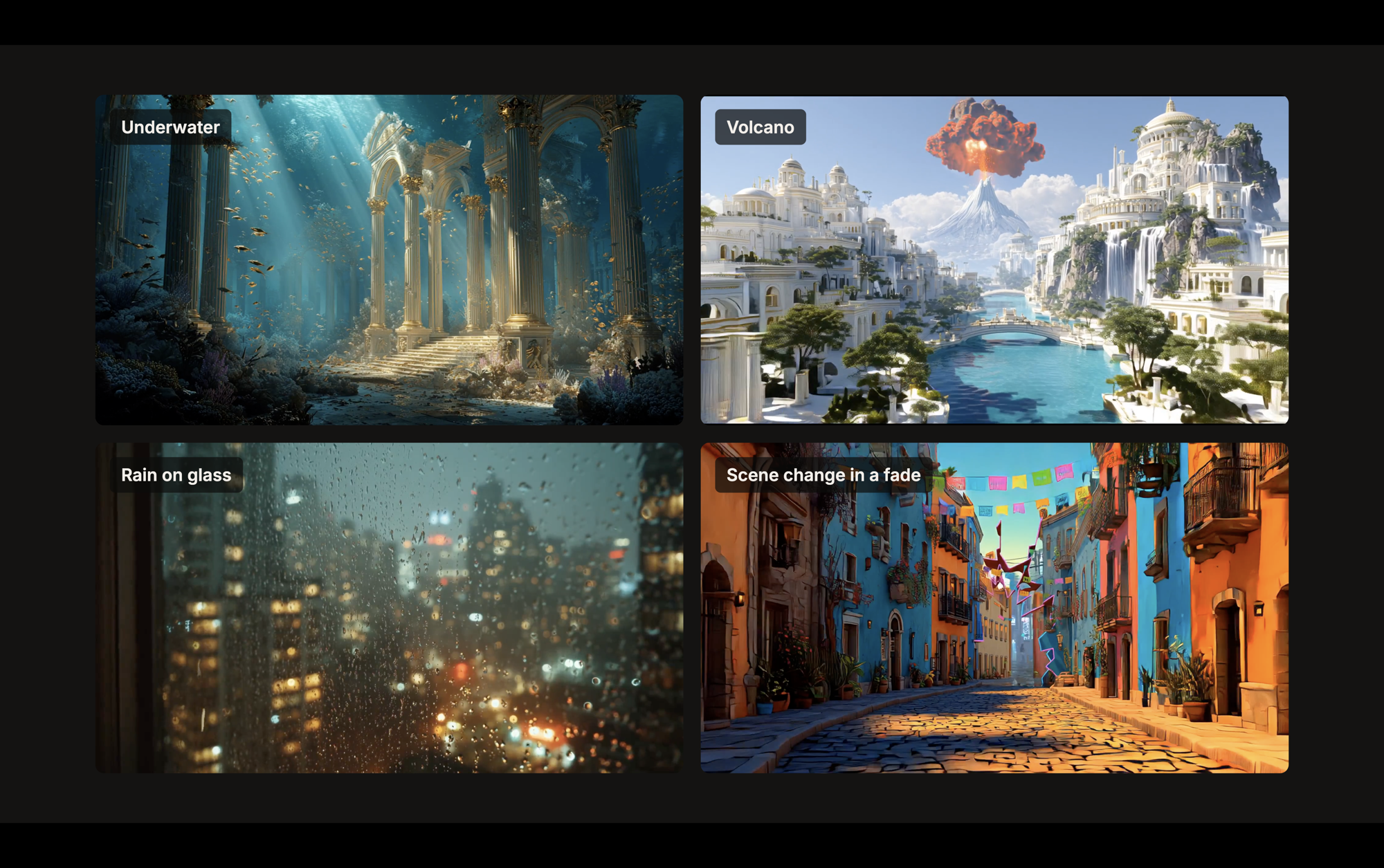
In my role at Real World, I get to work across a range of technical and production industries; the building infrastructure side through Lux Imperium, live productions through Red Globe, and IT technology modernisation with RWTS. All three of these have significant technology overlap - but one thing that keeps coming up is 'how will AI change this industry'. About five months ago I was asked to take some of my knowledge and skills and share them at NIDA, in partnership with the Association of Community Theatre, to help people who don't know much about AI begin to learn how to use it for creative applications.
One of the wonderful things about AI is that there is a large variety of tools which you can integrate into workflows quite easily - but running a seminar showing all of these, switching windows and tabs, and quickly iterating over content, structures and information is quite challenging. Traditional presentation tools like PowerPoint or Keynote are not really geared towards this kind of use case - particularly with live interaction.
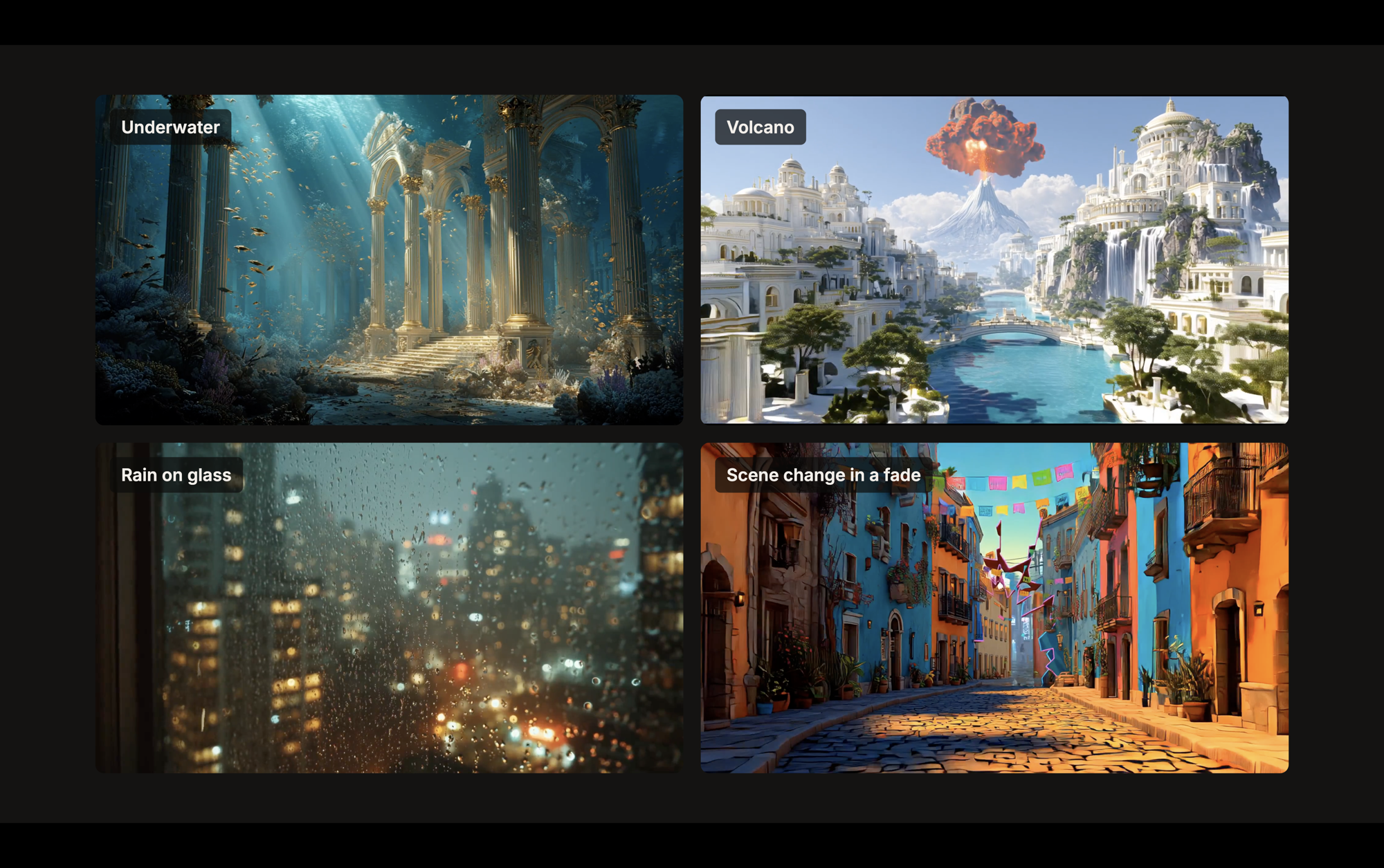
For this workshop, the focus was on digital backdrops for community theatre. There were some slides to work through, but a significant part of the session involved generating images, getting feedback from the people in the room, and making changes based on that feedback. We also needed to look at how those images fit on a stage, and what happens when we turn them into video. That meant moving between several different AI tools, as well as the slides and the images we'd already prepared.
I wanted to be able to manage all of that without spending half the session finding the right window. So last weekend I built an application to help, which I've called Stage Desk.
Bringing the workshop into one application
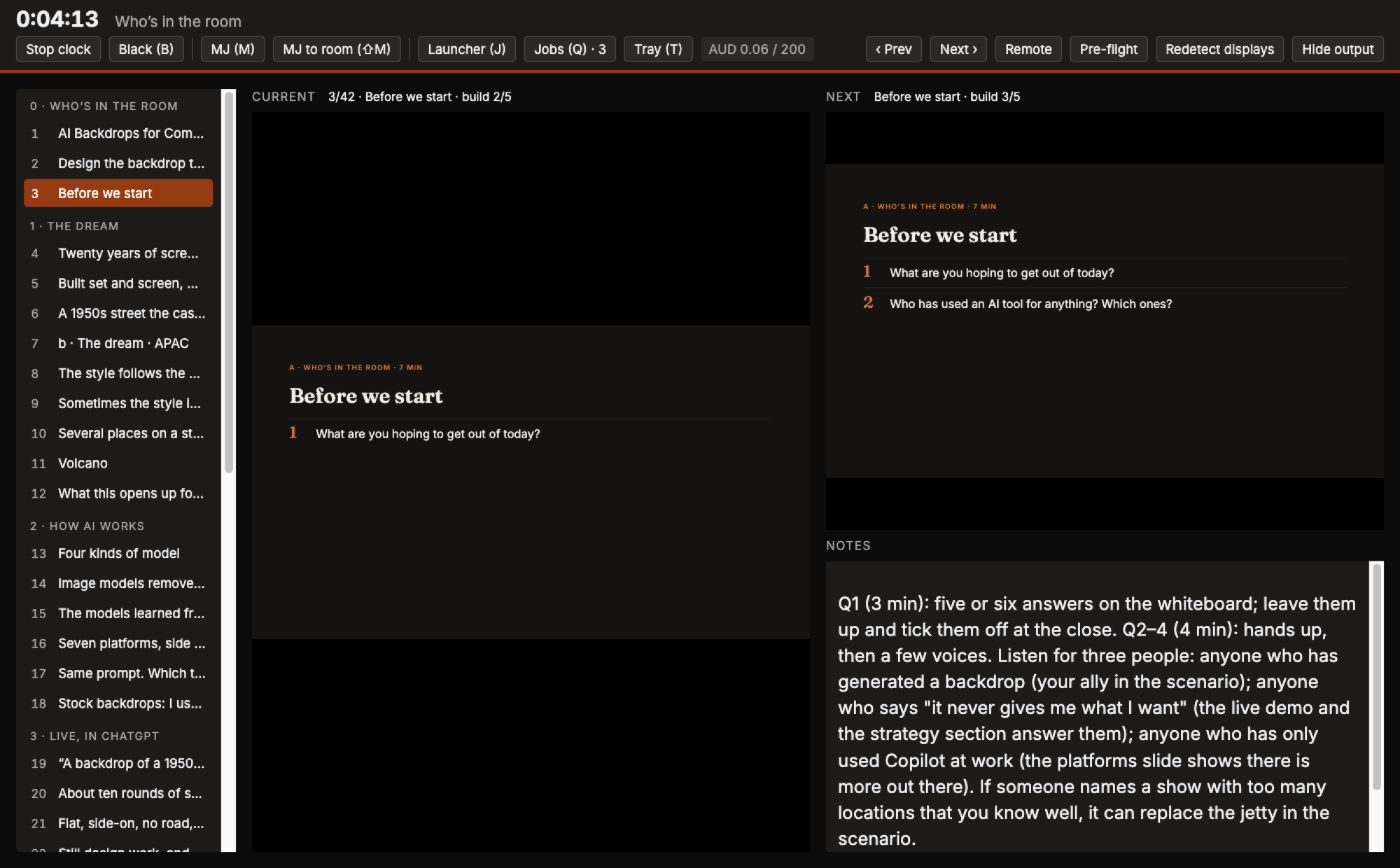
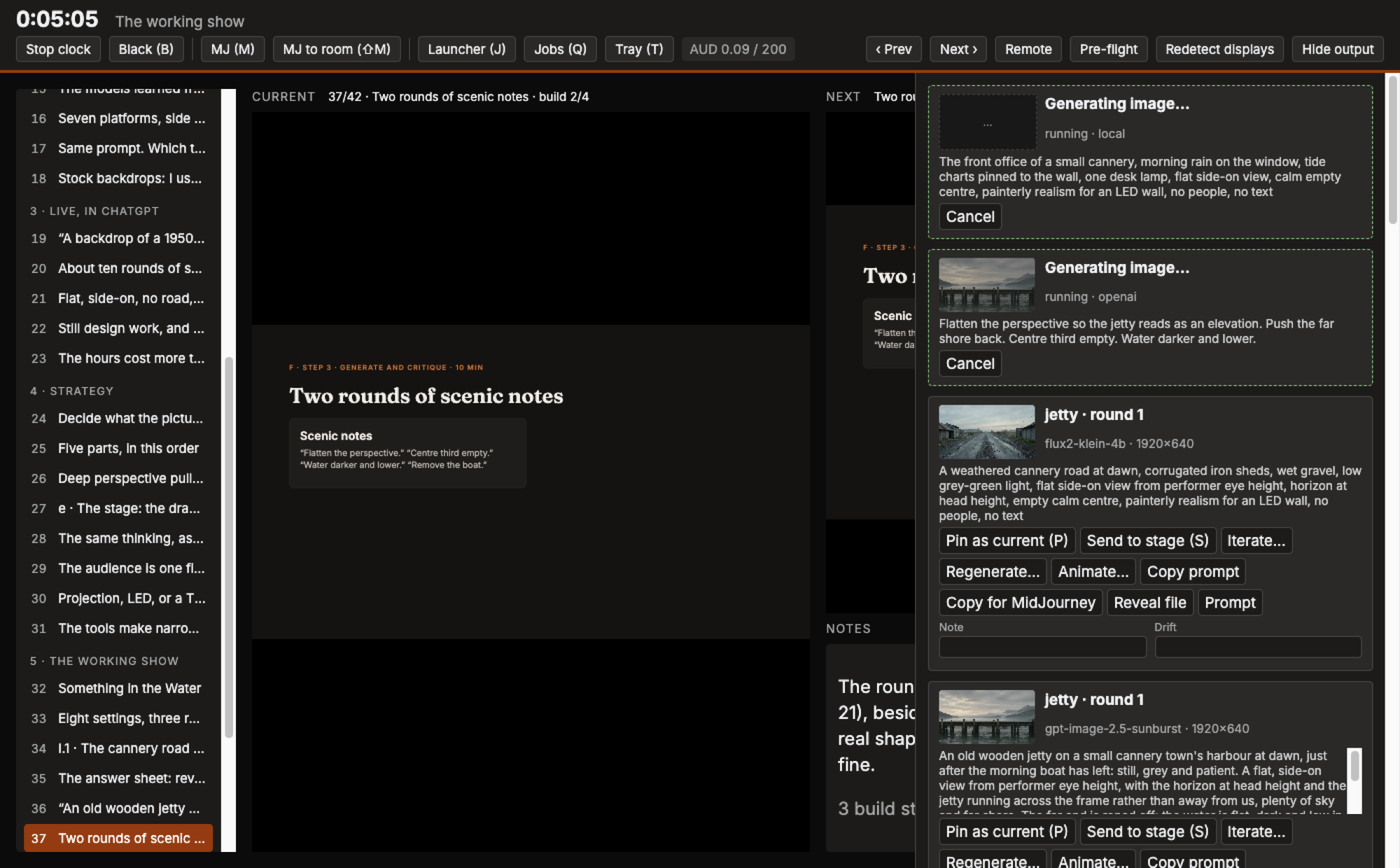
Stage Desk has two windows: one for me on the laptop, and one for the audience on the projector or LED wall. The presenter window gives me access to the slides, speaker notes, AI tools and generated images, while the audience window shows whatever I've chosen to put on screen.
The slides work much as you'd expect in a presentation application, including the animations that reveal things as you click through. Alongside them, I can start an image or video generation, keep presenting while it runs, and then bring up the result when it's ready. I can use prompts I've prepared beforehand or type something new based on the discussion in the room.
At the moment, it connects to OpenAI's image models, Google's Veo for video, and local image models running on the laptop. MidJourney is a little different, because there isn't an API available for the integration. Instead, I've included its website in a panel inside the application, so I can work there and drag the resulting images across. I can also show that panel to the audience when I want to explain what I'm doing.
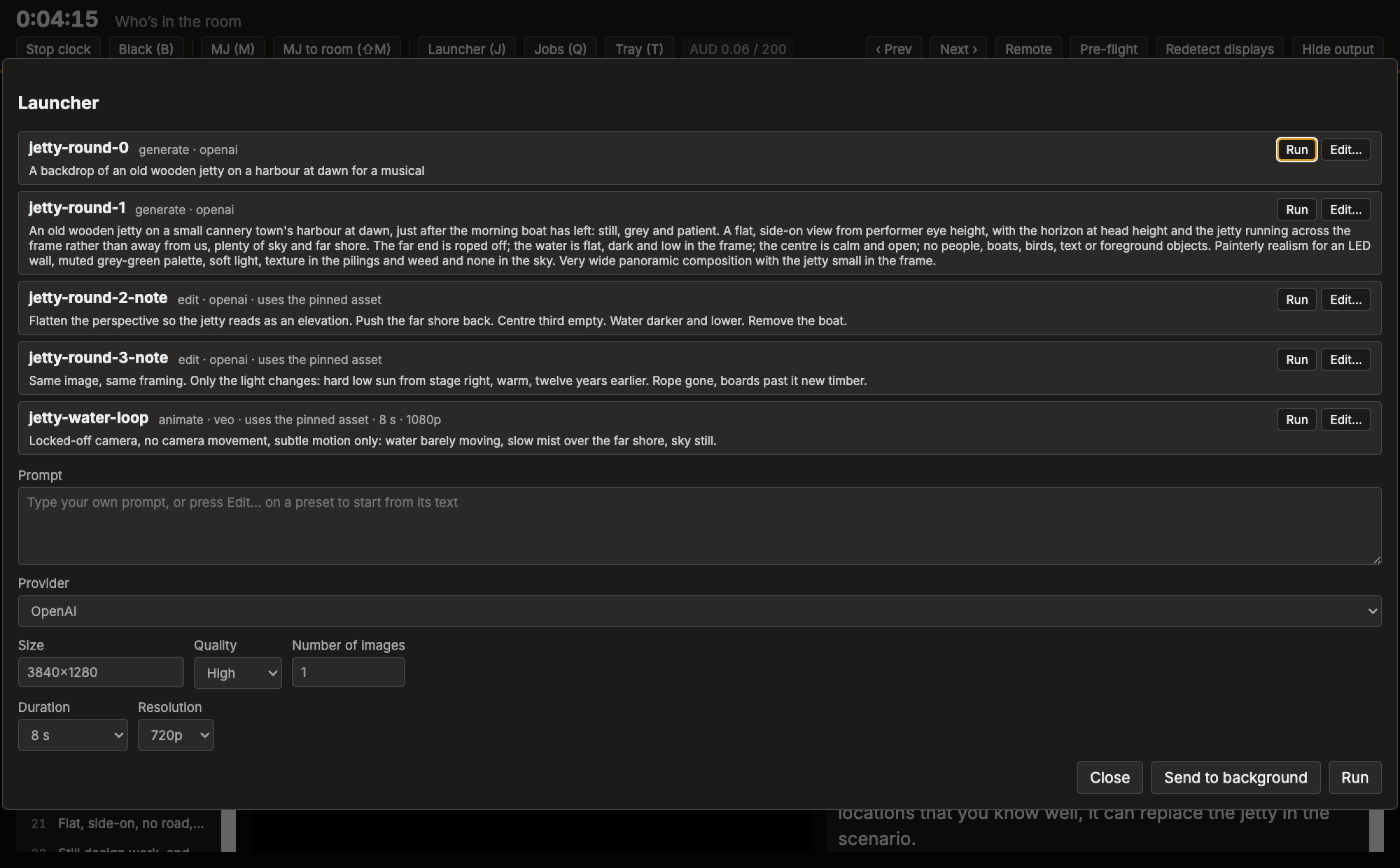
Once an image is in Stage Desk, I can use it as the starting point for another generation, including with a different provider. For example, I might take an image from MidJourney, ask OpenAI to change it, and then use the result to generate a video with Veo. The application keeps the images and their prompts together, so we can go back through the changes and see what worked and what didn't.
This is a useful part of the teaching process. A note like 'flatten the perspective, leave the centre third empty, and make the water darker and lower' is the kind of feedback you might give when designing scenery. Being able to apply that note and compare the results helps explain how these tools can fit into the design work people already do.
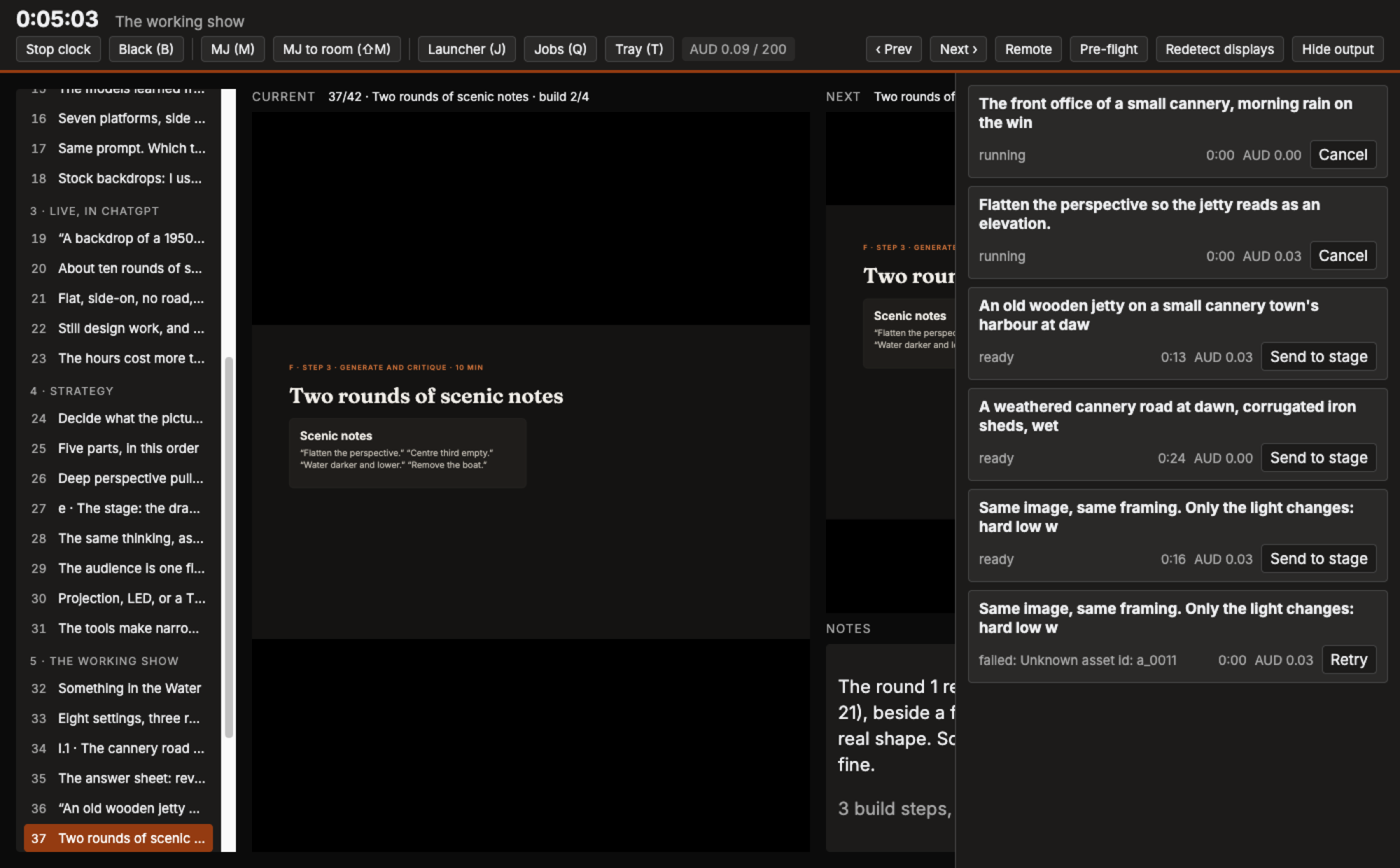
Generated images appear in my window first. When I'm ready, I can send one to the audience screen, displayed in the proportions of the stage screen we're designing for, with its prompt alongside it. Sometimes an unexpected result is useful to discuss, but I want to choose when we have that discussion.
There are also some fairly practical presentation features: a clock to help keep track of the session, a blackout button, a running estimate of the cost of the AI requests, and a limit on how much the application will let me spend. I added access from an iPad as well, so I can move away from the laptop and still control the session.
Why build it?
This is quite a specific combination of requirements. The presentation applications I looked at could manage the slides, and each AI tool had its own interface, but I still needed to move the content between them and manage what was on the projector. That movement between tools was part of what I wanted to demonstrate in the workshop, so making it easier to follow felt worth spending some time on.
I also wanted to keep the session moving if a generation took longer than expected or the venue internet stopped working. Each exercise has prepared examples saved locally, which means I can still work through the process and discuss the results if we can't generate anything live.
Building it with AI
Before starting on the code, I wrote a brief based on the workshop run sheet. For each part of the session, I worked through what I would need the application to do, what the audience should see, and what needed to be ready beforehand. I also set out some basic requirements, such as running on the laptop, keeping API keys out of the browser, and being able to use the slides I'd already written.
Most of the code was then written with Claude Code, working from that brief. I started building it at about 5 pm on Saturday, and by 1:30 pm on Sunday I was using it to run the workshop. That's about twenty hours from starting the build to using it in front of a room. We've fixed a couple of bugs we found today, but the application was already in use on Sunday afternoon.
For anyone interested in the technical side, it's an Electron application with a small Fastify server managing the generation requests and keeping the windows in sync. The presenter interface uses HTML and CSS, and the local image models run through a separate Python service using mflux on Apple silicon. The iPad connects to the same server and uses a web version of the presenter interface.
I already had 42 slides with speaker notes, images, video and animations. Rather than recreate all of that, we built an importer for the presentation tool's HTML export. That lets me continue editing the slides in the original tool, export them again, and bring the changes into Stage Desk. Getting the animations, notes and looping videos across took some work, but it saved having to maintain two versions of the presentation.
A few things that needed working through
One of the more frustrating parts of building with a coding agent is getting it to check that something actually works. At one point I asked, 'Can you actually test this rather than telling me it works?' The immediate problem was dragging images out of MidJourney: the integration had been described as working, but MidJourney's page prevented the images from being dragged in the first place.
The fix itself was small. Finding it required trying the action in the running application, rather than just checking the code. After that, I was much more specific about asking for those checks: open the window, click the button, drag the image, or check that a video is actually playing. Automated tests were useful throughout the build, but there were also things that needed to be checked in the application.
Connecting to the AI services involved a similar amount of checking. Some requests failed because the examples we'd used didn't match what the service expected. Google's Veo was particular about how images and durations were supplied, and an image-editing option accepted by an older OpenAI model caused requests to fail with a newer one. These were relatively small changes once we'd identified them, but they were a good reminder to test the actual requests early.
The cost display was another thing I wanted in place before using this in a workshop. Image quality settings can make a substantial difference to the cost of a request, and generating video can add up quickly. Stage Desk estimates the cost before starting each request and keeps a running total, with a cap to stop me accidentally queuing more than intended. That gives me one less thing to keep track of while presenting.
Some of the original ideas also turned out to be unnecessary. I'd planned several versions of the workshop with different running times, and rules to include or exclude slides for each one. Once I started using it, an elapsed-time clock and an indication of the current section were enough. Automatically starting a generation when I arrived at a slide also sounded convenient, but it made it too easy to trigger paid requests while testing the slides. I dropped that in favour of starting them myself.
Adding the iPad controls meant thinking through who could access the application on the venue network. The remote uses a PIN to sign in, with a separate session token after that and a limit on repeated PIN attempts. The API keys stay on the laptop, and there are tests to check that they aren't included in responses sent to the browser.
There were smaller annoyances too. The application tests kept opening windows and taking focus away from whatever I was working on. After enough interruptions, we changed the automated tests to run with the windows hidden, opening them only when there was something we needed to inspect visually.
Using it in the session
One of the exercises involves developing a jetty backdrop. I can start the first generation while introducing the exercise, then show the result and ask for scenic notes from the room. Those notes go into an edit request, which runs while we continue with the slides. When the revised image is ready, we can put it up, compare it with the first version, and look at whether it addresses the feedback.
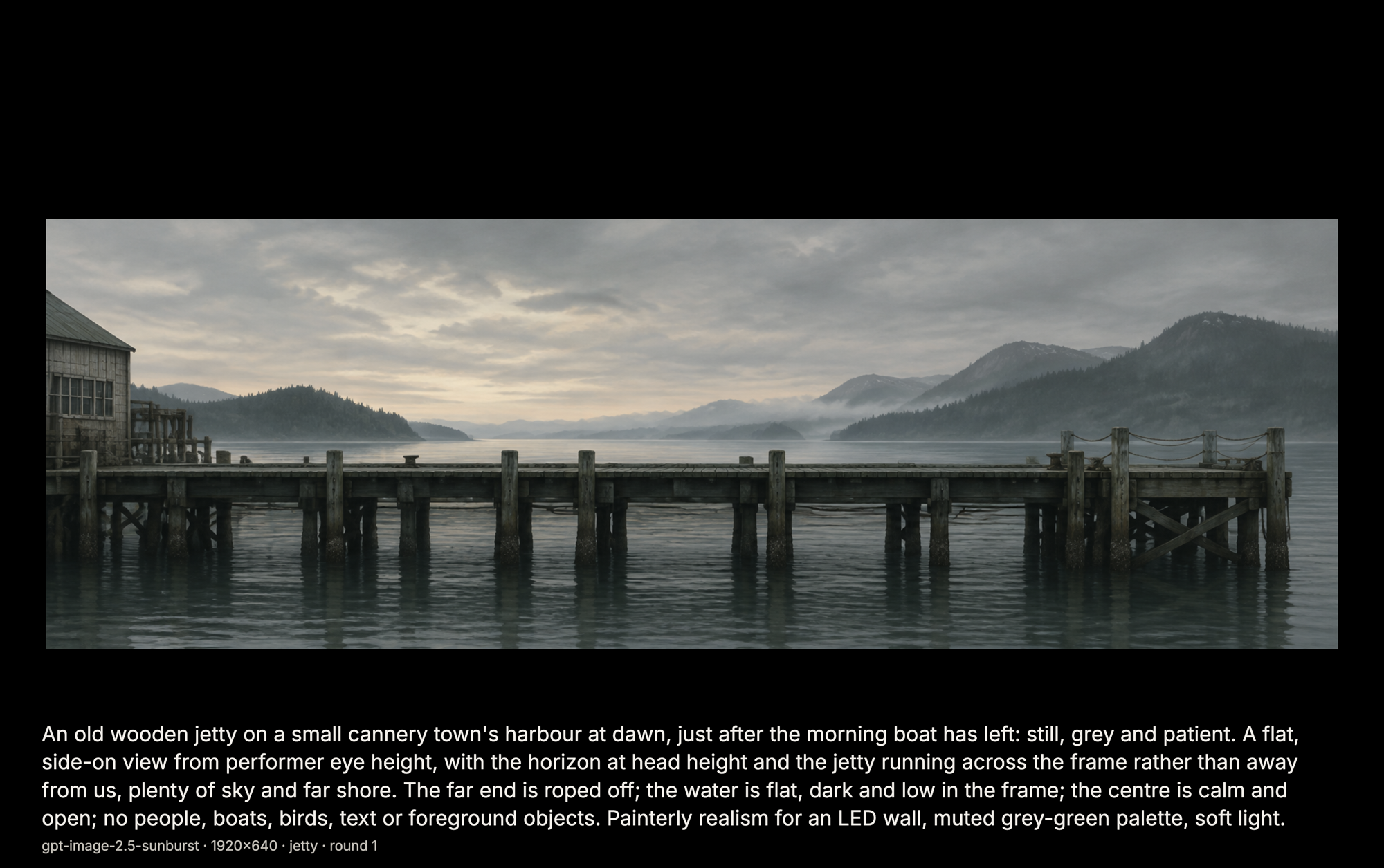
The prepared examples let us follow the same process if a live request fails. We can still look at the original prompt, the feedback and the revised image, and talk through the decisions involved. The workshop needs to be useful even if the internet isn't cooperating.
Making it available to others
We're considering releasing Stage Desk as open source. At the moment, quite a lot of it is set up specifically for this workshop, including the slides, prepared prompts and examples. Before sharing it, we'd need to replace those with a small sample presentation and document how to import slides and configure the AI services.
The underlying application could be useful for other people teaching with these tools, particularly where you want to move between prepared material and live demonstrations. I'd be interested to hear from anyone doing something similar, and whether this would help with the way you run your sessions.
Why should I care?
Once upon a time, I wrote a tool called See.
It was a presentation tool designed for a specific niche - production in Churches. It understood song lyrics, bible passages and generic media, and allowed live authoring to screen. It took me the best part of 5 years - and for a time was genuinely the best Mac presentation tool around for church media. Ultimately I gave it up because performance was an issue for video layering, and I couldn't work out how to work with Apple's OpenGL abstraction well enough to render textures efficiently particularly when I had to extract video data from QuickTime streams (this was in the days before Metal acceleration and AV Foundation).
Yet, in late 2026, I can build tooling like this in quite elaborate tool in a couple of days (hours really), because of the knowledge and structure I have. The world has changed; and AI is enabling things in the technology space that were never possible before.
It's not simple one thing that has changed. It's not just that AI development has increased the ability to develop code quickly. It's that for 15 years we have been tooling development workflows, libraries, systems and processes so that we can develop faster, more accurately and with more consistency - and AI is a tool that lets us bring all these things together in ways that were always possible, just required a large team of people, weeks of planning, and a lot more 'missteps' before you got the thing that works.
Andrew Yager is the founder of Real World Technology Solutions and designs for Red Globe Productions. The workshop's handouts and the six-lens critique framework are available on request.
How we can help
More from the blog

Securing your business in the AI Era
06 May 2026
Join Andrew Yager and Phil Meyer from Catalyst 345 as they talk about how to use the Microsoft Ecosystem to deliver Secure AI in your …
Read more
The Microsoft AI Assistant That Quietly Runs Up a Bill
15 Jun 2026
You can create a custom AI assistant using Microsoft 365’s Copilot that answers questions about your company documents. However, be cautious of unexpected billing due …
Read more
Manage overlapping external subnets with Docker
26 Jul 2018
One of the good (and bad) features of using Docker and docker-compose is it’s ability to spin up virtual networks for your container stack. This …
Read more