
Here's a scene we see all the time. A business has grown from a handful of people to fifty-odd, the office is full of MacBooks and iPhones, everything works — and then someone resigns. A week later you go to redeploy their iPhone and it's locked to their personal iCloud. The apps the company paid for? Bought on their personal account. They've walked out the door with them, and there's nothing you can do.
Nobody planned it this way. Apple devices don't arrive in a business by decision; they accumulate. Someone buys a few laptops, staff bring their own phones, the iPad at reception gets set up with whatever Apple Account was handy that morning. At five people, it's fine. At fifty, it's a liability — no central control, app purchases scattered across personal accounts and expense claims, and a device that becomes a paperweight the day an employee leaves.
The good news: Apple built a proper answer to this, and it's free. The trick is understanding the two kinds of Apple Account, why your business needs both, and how they fit together. Let's untangle it.
Two Apple Accounts, Two Very Different Jobs
First, a quick terminology note, because Apple changed the names recently. What you've always called an "Apple ID" is now an Apple Account. And the business version is a Managed Apple Account. Same things, current names.
A personal Apple Account belongs to the person. It does everything: iCloud photos and backup, App Store purchases, Find My, Apple Pay, Family Sharing. It's perfect for someone's own life — and that's exactly the point. It belongs to them, not to you.
A Managed Apple Account belongs to the company. You create it, you control it, you can reset it, and you can switch it off the day someone leaves. It's deliberately stripped back. No Apple Pay, no Family Sharing, no Apple Music or TV+. Here's the one that surprises everybody: a Managed Apple Account can't buy or even download apps — not even free ones. On the device you'll see an error like "This Apple ID cannot be used to make purchases."
That sounds broken. It isn't. It's the whole idea. Apple's model is that the organisation buys apps in bulk and pushes them to devices, so no individual ever "owns" a work app again. Which brings us to the part that actually solves your problem.
The Bit That Fixes Everything: Apps and Books
Inside Apple's business platform there's a volume licensing system — you might remember it as VPP, now called Apps and Books. Your business buys app licences and owns them. You can assign a licence to a person, or — far better for most setups — assign it straight to the device.
When you assign apps to the device, no Apple Account is needed on that device at all. The app just appears. No sign-in prompt, no password, no personal account in the mix. When someone leaves, the licence returns to the pool and you hand it to the next person. The "apps walked out the door" problem? Gone, structurally.
There's a quieter benefit too. Because the licences live in one place and belong to the business, you can actually see what you're paying for. No more discovering that four people expensed the same $80 app on four personal cards, or that a subscription is still billing a card belonging to someone who left in March. You buy once, you assign, you reclaim. For a finance team that's used to app spend being a black hole of small expense claims, that alone tends to justify the exercise.
So Why Keep Both Accounts in Play?
Because your staff are still human beings with their own phones. On a personal device someone uses for work — the classic BYOD situation — Apple keeps work and personal completely separate. The Managed Apple Account handles the work apps and data; the personal Apple Account handles everything else; and on iPhone the two live on separate, encrypted volumes that can't see each other.
Your IT team manages only the work side. They can't see personal photos, messages, or location — they genuinely can't, it's enforced by the operating system, not a policy promise. And when the person leaves or the phone leaves the business, the work volume is wiped instantly while their personal life stays untouched. That's the deal that makes it fair to ask someone to enrol their own phone.
The Third Kind: Devices That Should Only Ever Do Work
Not every device should allow personal use at all. Think of the iPad at reception, the shared tablets your floor staff pass between shifts, a point-of-sale device, the kiosk in the foyer, the iPads your volunteers use around kids. These aren't anybody's personal phone. They're company tools that should run a short list of approved apps and nothing else — no personal Apple Account, no App Store browsing, no signing into iCloud with whatever account happens to be handy.
Apple supports this properly. A company-owned device can be locked to managed use only: it enrols itself, runs just the apps you push through Apps and Books, and can be set to refuse personal Apple Accounts outright. One owner, or no owner — a shared device tied to nobody's personal account, so the next person who picks it up doesn't inherit the last person's logins.
Why bother locking a device down this hard? Three reasons, and most businesses have at least one.
You can prove what's on it. In a regulated or grant-funded setting, "trust us, staff only install approved software" isn't good enough — you have to show it. A locked device is auditable. A mixed-use one is a shrug.
Duty of care. This one matters for our not-for-profit, church and educational cleints. A shared iPad used around children shouldn't carry someone's personal messaging, photos or open App Store access. A managed-only device isn't just tidier — it's a defensible child-safety position you can put in a policy and stand behind.
A smaller target. No personal apps and no personal iCloud means far less to attack and no quiet path for company data to leak into an account you don't control. When the device is retired, there's nothing personal on it to worry about.
So you're really looking at three kinds of device, not two: locked managed-only tools, company devices where a bit of personal use is fine, and personal phones kept cleanly separated. Same building blocks underneath — you just dial the control up or down to suit the job.
How It All Connects
Three pieces do the work. Apple Business (Apple's free platform, the renamed Apple Business Manager) is the hub where you create managed accounts and own your app licences. Microsoft Intune is the day-to-day manager that pushes apps and settings to devices. And your existing Microsoft 365 login ties it together — once you connect the two, staff sign in to work apps with the same username and password they already use for email. No second password to forget, no separate Apple credential for IT to hand out and chase.
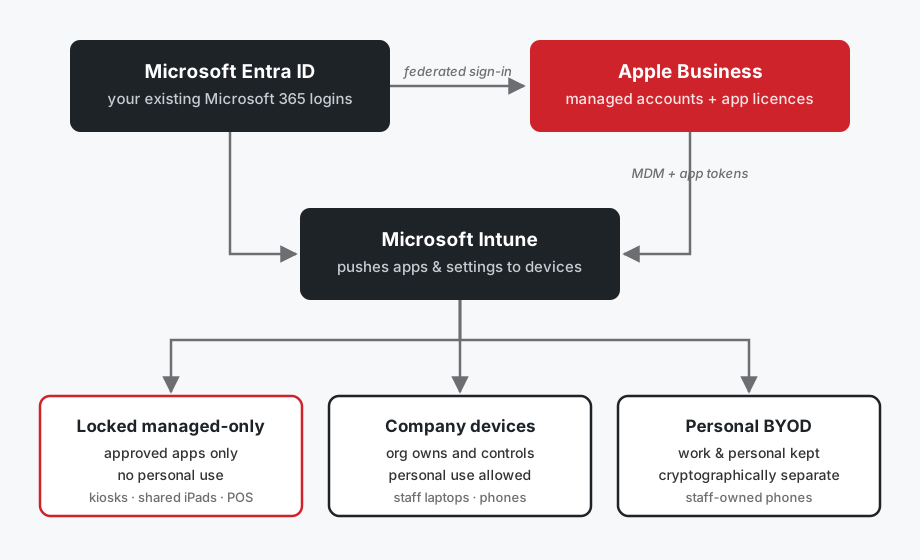
Company-owned devices bought through the right channel enrol themselves the moment they're switched on — staff never touch a setting. Lock one down to managed-only, or leave room for personal use; it's your call per device. Personal phones enrol with a light touch that protects the owner's privacy. Either way, you're in control of the work, and the work apps belong to you.
The setup is the same underneath for all three tiers. What changes is how far you turn the dial. That's worth seeing as a decision, because it's the one you'll actually make for each device you own.
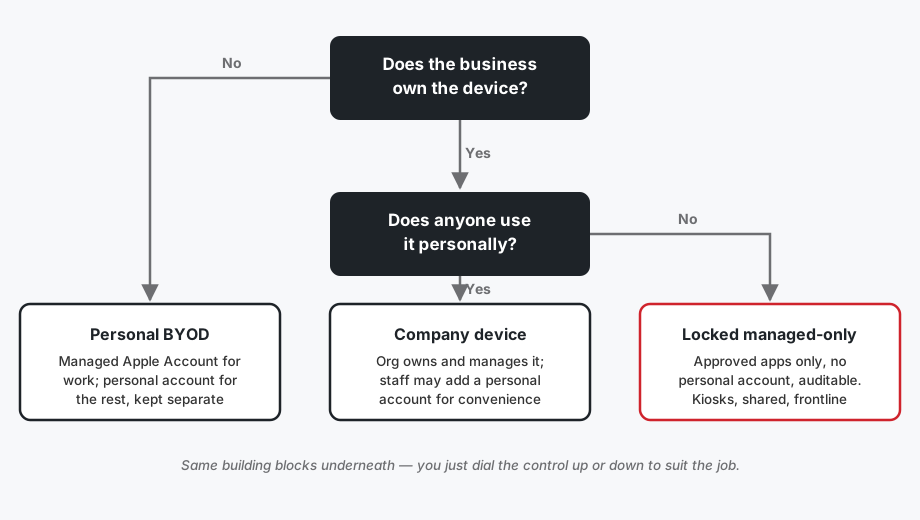
Two questions, three answers. Does the business own it? If not, it's BYOD and you keep work and personal cleanly apart. If you do own it, does anyone use it personally? If yes, it's a normal company device. If no, lock it down. That's the whole framework.
One trap worth knowing about up front. When you link Apple Business to your Microsoft 365 sign-in — Apple calls this federation — your email domain effectively becomes "owned" by the business for Apple purposes. That's the point: staff can't quietly spin up personal Apple Accounts on the company domain any more. But if some of them already have personal Apple Accounts using their work email — and in a business that grew organically, some always do — those accounts hit a conflict. Apple gives each person a window to rename theirs to a personal email and move their own photos and purchases across before the business claims the address. It's manageable, but it's a conversation you want to have with staff before you flip the switch, not a surprise that lands in their inbox. We plan this bit carefully on every rollout.
Moving Your Existing Fleet — Honestly
Now the part most articles skip. There's no magic button that sucks your current devices into management without disruption. Here's the real picture.
Devices bought through Apple or an authorised reseller can be brought in and set up to enrol automatically — usually after a wipe, so plan backups. Devices bought at retail or second-hand can still be added, but it means erasing them and a 30-day window where the user could remove management. Apps owned by individuals can't be transferred — you re-buy the licences through Apps and Books and redeploy them (free apps cost nothing, so this is paperwork, not budget). And the sharp edge is Activation Lock: a device locked to a departed employee's personal account, with no business management on it, can be genuinely unrecoverable.
In practice we work through a fleet device by device. Some can move across in place with barely any disruption — a personal phone being enrolled for work doesn't need wiping. Others, especially shared and company-owned hardware that you want fully locked down, need a clean start to get into the properly managed state. None of it is dramatic if it's planned. All of it is painful if it's done in a panic the week someone resigns.
The lesson sitting in that last sentence: the time to do this is before the resignation, not after.
Where We Come In
Getting this right is fiddly. The connection between Apple and Intune runs on certificates and tokens that expire every year — and an expired token is the number one cause of a fleet suddenly going dark. The migration needs to be planned device by device. The login federation has a few traps worth knowing about in advance.
That's the sort of thing we do every week. We'll set up Apple Business, connect it to your Microsoft 365 and Intune, sort out the licensing, and move your existing devices across without the business grinding to a halt — so you never personally have to wonder whose iPhone it really is.
Got a drawer of devices nobody can fully control? Let's fix it.
Talk to us — 1300 798 718.
How we can help
More from the blog

What's Changing on 1 July: Vendor Price Rises Explained
30 Jun 2026
Vendor price rises are hitting from 1 July 2026 — Microsoft 365, NBN, cloud storage and more. Here's a plain-English breakdown of what's changing, why, …
Read more
Microsoft 365 phishing is spreading through church organisations. Here’s how to spot it.
14 May 2026
Over the past week we’ve watched a phishing campaign tear through Sydney’s Christian church networks. It’s clever, it’s working, and your email filter won’t stop …
Read more
Securing your business in the AI Era
06 May 2026
Join Andrew Yager and Phil Meyer from Catalyst 345 as they talk about how to use the Microsoft Ecosystem to deliver Secure AI in your …
Read more